Laptop Overheating? 7 Critical Steps to Cool Down Your PC
Is your laptop too hot to touch? Learn why thermal throttling happens, how to clean your fans safely, and advanced cooling techniques to prevent permanent damage.
Imagine working on an intensive video edit, or playing your favorite game, when suddenly your laptop's fans start sounding like a jet engine preparing for takeoff. The keyboard becomes uncomfortably hot to the touch, your game's frame rate drops to a crawl, and eventually, the system just shuts off completely without warning.
This is a classic case of severe laptop overheating. Unlike desktop computers which have plenty of empty space for air to flow, laptops pack incredibly powerful, heat-generating components into an aluminum or plastic shell that is only millimeters thick. When that heat cannot escape, the computer enters a protective state known as "Thermal Throttling."
In this guide, we will walk you through beginner-friendly hardware maintenance, software tweaks, and advanced cooling strategies to keep your laptop running smoothly and quietly.
Monitoring your CPU temperatures is the first step to diagnosing the problem.
The Science of Thermal Throttling
Your computer's brain (the CPU) and graphics processor (the GPU) generate heat as a byproduct of electricity passing through millions of microscopic transistors. To manage this heat, laptops use copper heat pipes to draw heat away from the chips and into a heatsink, where a fan blows the hot air out through the exhaust vents.
When dust clogs those vents, the heat gets trapped. If your CPU reaches its maximum safe operating temperature (usually around 95°C to 100°C), it will intentionally reduce its clock speed to generate less heat. This is why a hot computer feels incredibly slow. If temperatures continue to rise, the motherboard will trigger a hard shutdown to prevent the silicon from literally melting—sometimes causing a Blue Screen of Death (BSOD).
Step-by-Step Guide to Cooling Down Your Laptop
Here are practical, step-by-step actions you can take right now to lower your computer's operating temperature.
Laptops pull in cool air from the vents on the bottom and push hot air out the back or sides. If you rest your laptop on a bed, pillow, or thick carpet, the fabric acts like an insulating blanket, completely blocking the intake vents. Always use your laptop on a hard, flat surface like a desk or a wooden lap tray.
Before fixing the problem, you need to know how bad it is. Download a free hardware monitoring tool like HWMonitor or Core Temp. If your CPU idles (doing nothing) above 60°C, or hits 95°C+ while gaming, you have a severe cooling issue.
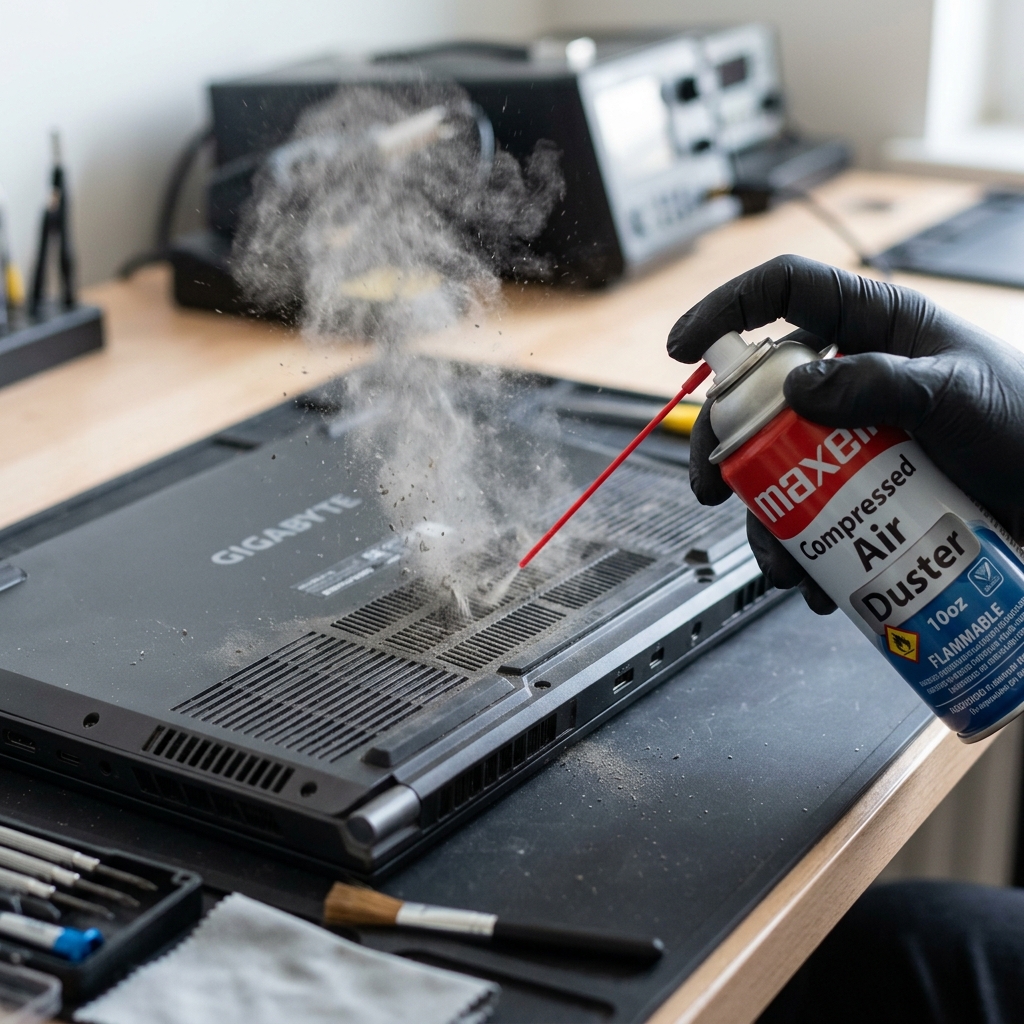
Over time, a thick layer of dust builds up between the fan blades and the exhaust fins, creating a physical barrier that air cannot pass through.
How to fix: Turn off and unplug the laptop. Take a can of compressed air. Hold the can upright and use short, quick bursts into the intake vents on the bottom, and the exhaust vents on the side. For the best results, unscrew the bottom panel of the laptop and carefully blow the dust out from the inside.
Sometimes your laptop is hot because a hidden program is working your processor to 100% in the background. Press
Ctrl + Shift + Esc to open Task Manager and check the CPU column. End any tasks that are needlessly consuming processing power. (For more tips on this, see our guide on Fixing a Slow Computer).
Windows allows you to change how your laptop cools itself. Open the Control Panel, go to Power Options > Change plan settings > Change advanced power settings. Expand the "Processor power management" node. Under "System cooling policy", ensure it is set to Active. This tells Windows to ramp up the fan speed before slowing down the processor.
Advanced Cooling Strategies
If physical cleaning didn't work, here are two advanced methods used by enthusiasts and technicians to bring temperatures down drastically.
1. Undervolting the CPU
By default, laptop manufacturers supply slightly more voltage to the CPU than it actually needs to ensure stability. This excess voltage creates excess heat. "Undervolting" is the process of safely reducing that voltage using software like Intel Extreme Tuning Utility (XTU) or ThrottleStop. Lowering the voltage offset by just -50mV can drop your temperatures by 5 to 10 degrees without losing any performance.
2. Reapplying Thermal Paste
Between your CPU chip and the copper cooling pipes is a thin layer of silver-gray "thermal paste." This paste transfers heat from the chip to the cooler. After 3 to 4 years, this paste dries up, cracks, and loses its thermal conductivity. Opening the laptop, wiping away the old crusty paste with isopropyl alcohol, and applying a fresh dab of high-quality paste (like Thermal Grizzly Kryonaut) is the ultimate cure for an overheating laptop.
The Quickest External Fix: Laptop Cooling Pads
If you don't want to open your laptop, a high-quality laptop cooling pad is a great investment. Look for a cooling pad that has large, slow-spinning fans (which are quieter) and ensure the fans physically align with the intake vents on the bottom of your specific laptop chassis.
Frequently Asked Questions (FAQs)
Frequently Asked Questions About Laptop Overheating
Q: What is a safe operating temperature for a laptop CPU?
For most modern laptops, 45-75C under normal load is healthy. During gaming or heavy rendering, up to 85C is acceptable for short periods. Sustained temperatures above 90C indicate a cooling problem — the CPU will throttle its speed to protect itself. Above 100C, hardware is at risk of permanent damage. Use HWMonitor or Core Temp to monitor readings in real time.
Q: How often should I clean dust from my laptop vents?
In a typical home, clean laptop vents every 6-12 months. If you have pets, work on carpet (which blocks vents and draws in more dust), or live in a dusty environment, clean every 3-4 months. A 10-15 second blast of compressed air through the exhaust vent removes most accumulated dust without any disassembly needed.
Q: Does a laptop cooling pad actually make a difference?
Yes, but results vary by design. Laptops with bottom intake vents benefit most — you can see a 5-15C reduction. Laptops with side vents benefit less (2-5C). The best pads use one large, slow-spinning fan positioned under the intake vent. Avoid cheap pads with many small fans — one large fan moves more air at lower noise than several tiny ones.
Q: Is it safe to repaste the CPU on my laptop myself?
Yes, if your laptop is out of warranty and you are comfortable with careful disassembly. Quality pastes like Thermal Grizzly Kryonaut or Arctic MX-6 can reduce temperatures by 10-20C on laptops with 3+ year old dried stock paste. Watch a model-specific disassembly video first. The main risk is damaging heat pipe mounting clips — work slowly and never force components.
Q: My laptop fan runs at maximum speed all the time — is this a problem?
A constantly maxed fan is a symptom, not the root cause. It means the system is struggling to dissipate heat. Open Task Manager and sort by CPU usage — common culprits are Windows Update, antivirus scans, Chrome with many tabs, or malware. If CPU usage is low but fans are still maxed, the thermal sensor or fan controller may have failed and needs professional diagnosis.
🔧 When to Seek Professional Help
- Temperatures exceed 95C at idle with no heavy applications running
- Fans are loud but CPU temperature keeps rising — fan may be seized or disconnected
- Laptop shuts down without warning during normal tasks — thermal protection activating
- Visible discoloration on the chassis near vents — possible heat damage to case
- Laptop is still under warranty — do not disassemble; file a warranty claim instead
Summary Checklist for Laptop Thermal Optimization
- Check 1: Monitor CPU and GPU temperatures at idle and load using HWMonitor or Core Temp.
- Check 2: Clean fan exhaust vents with compressed air every 6 months to remove dust buildup.
- Check 3: Use a laptop cooling pad with bottom intake fans during gaming or rendering.
- Check 4: Replace dried thermal paste with high-conductivity compound (e.g., Arctic MX-6) on 3+ year old laptops.
- Check 5: Adjust Windows Power Options to Balanced mode to prevent unnecessary high CPU clock frequencies.
Best Practices for Long-Term Laptop Thermal Management
- Avoid using laptops directly on soft fabric surfaces (beds, blankets, couches) that block intake vents.
- Elevate the rear of the laptop chassis by 1-2 cm using a stand to increase airflow circulation underneath.
- Limit high-resource background applications while gaming or compiling code.
- Perform regular dust cleanings every 6 to 12 months using canned compressed air.
Undervolting CPU to Reduce Heat (Advanced Tech Tip)
Advanced users on supported Intel and AMD processors can use tools like ThrottleStop or Intel XTU to apply a slight negative voltage offset (e.g. -50mV to -80mV) to the CPU core. Undervolting reduces power consumption and heat output significantly without degrading CPU clock speed performance.