Blue Screen of Death (BSOD): The Ultimate Troubleshooting Guide
Detailed strategies to diagnose, understand, and resolve critical Windows system crashes without losing your data.
Imagine this: You are hours into writing a crucial report or in the middle of an intense gaming session, and suddenly, everything stops. Your monitor turns a bright, glaring blue, displaying a sad face emoticon and some cryptic text. This is the infamous Blue Screen of Death (BSOD).
While it feels like your computer has just died, a BSOD is actually your system's way of protecting itself. When Windows encounters an error so severe that it cannot safely continue operating without risking permanent damage to your hardware or severe corruption to your data, it halts everything immediately. This sudden stop is what produces the blue screen.
In this comprehensive guide, we will break down exactly why these crashes happen, how to read the error codes, and the step-by-step actions you can take to fix them permanently.
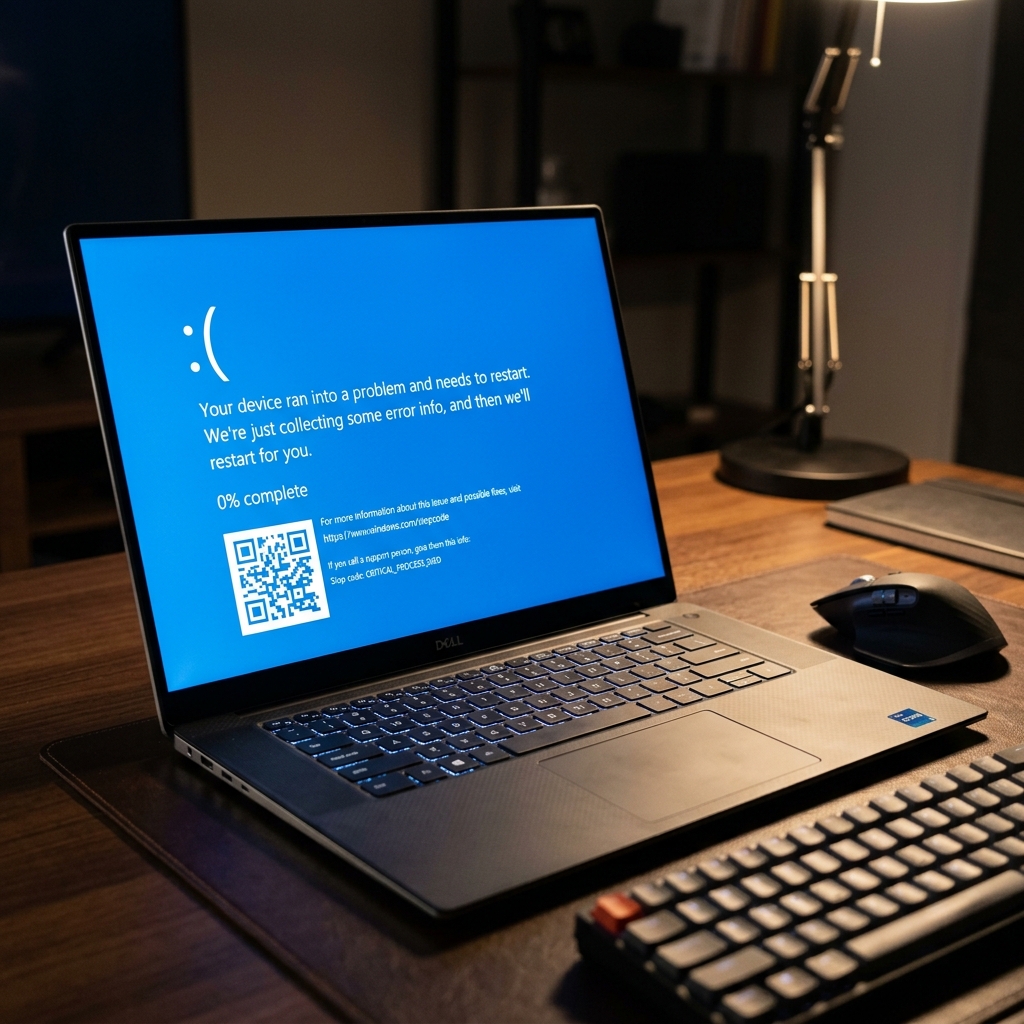
The modern Windows BSOD, complete with a sad face and a stop code.
What Exactly Causes a Blue Screen?
Unlike a regular application crash (like when your web browser freezes and closes), a BSOD happens at the "kernel" level. The kernel is the core of your operating system that bridges your software to your physical hardware. When the kernel crashes, the whole ship goes down.
The most common culprits include:
- Faulty Device Drivers: A driver is a translator between Windows and a piece of hardware (like your graphics card or Wi-Fi adapter). If an updated driver has a bug, it can send a bad instruction to the kernel.
- Failing Hardware: A dying hard drive, overheating processor, or a bad stick of RAM (memory) will physically fail to hold data, leading to instant crashes.
- Corrupted Windows Files: Malware infections or interrupted Windows updates can scramble essential system files.
- Overheating: When a computer's internal temperature exceeds safe limits, the system will intentionally trigger a BSOD to shut down and prevent components from melting.
Understanding Common BSOD Stop Codes
At the bottom of the blue screen, you will typically find a "Stop Code" written in all caps with underscores. This is your biggest clue. Here are a few common ones and what they mean:
Usually caused by a buggy device driver or antivirus software trying to access a memory address it doesn't have permission for. Updating your graphics and network drivers is the best fix.
This points directly to a severe memory management issue. In 90% of cases, this means your physical RAM stick is failing or not seated properly on the motherboard.
A vital Windows background process (like csrss.exe) unexpectedly stopped. This can be caused by heavy malware infections or severe hard drive corruption.
Your graphics card stopped responding, and Windows failed to reset the driver in time. Reinstalling your graphics drivers using a tool like DDU (Display Driver Uninstaller) usually resolves this.
Step-by-Step Troubleshooting Guide
If you've experienced a BSOD, don't panic. Follow these logical steps to isolate and fix the problem.
The moment a BSOD appears, it usually stays on the screen while it collects data (showing a percentage). Use your smartphone to snap a quick picture of the screen. You need that exact Stop Code.
Sometimes a malfunctioning USB hub, printer, or external hard drive can cause a kernel panic. Unplug everything except your mouse, keyboard, and monitor. If the computer boots fine, plug the devices back in one by one to find the culprit.
If your PC crashes every time it turns on, you need Safe Mode. Restart your PC 3 times during the Windows loading logo. This triggers the "Automatic Repair" menu. Go to Troubleshoot > Advanced options > Startup Settings > Restart. Press '4' or 'F4' to enter Safe Mode, which loads Windows with minimal drivers.
These built-in tools repair corrupted Windows files. Open Command Prompt as Administrator and run:
sfc /scannowWait for it to finish, then run:
DISM /Online /Cleanup-Image /RestoreHealth
Press the Windows key, type "Windows Memory Diagnostic", and press Enter. Choose to restart and check for problems. Your PC will boot into a blue screen testing environment. If it finds errors, you will need to replace your RAM.
Advanced Fix: Reading Dump Files
When Windows crashes, it creates a "Minidump" file containing a snapshot of the system's memory at the exact moment of failure. Professional technicians use free software like BlueScreenView by NirSoft to read these files. BlueScreenView highlights the exact .sys file (driver) that caused the crash in pink, making it incredibly easy to pinpoint whether your Wi-Fi card or graphics card is at fault.
Still Stuck? Try System Restore
If you recently installed a new program or driver and the BSODs started happening, you can roll back your computer's state in time. Search for "Create a restore point" in the Start menu, click System Restore, and choose a date from before the crashes began. This won't delete your personal files, but it will remove newly installed software and drivers.
Frequently Asked Questions (FAQs)
Frequently Asked Questions About Blue Screen of Death
Q: Can a BSOD permanently damage my computer?
A single BSOD rarely causes permanent hardware damage. However, repeated crashes from overheating or a failing PSU can shorten component lifespan. Address root causes immediately, especially stop codes like WHEA_UNCORRECTABLE_ERROR which point to CPU or motherboard hardware failure.
Q: How do I find what caused my last BSOD without special software?
Open Event Viewer (Win+R, type eventvwr.msc), go to Windows Logs → System and filter by Critical events around the crash time. Look for BugCheck or Kernel-Power entries — these show the exact stop code and the driver or process that triggered the crash, without needing any third-party tools.
Q: Does MEMORY_MANAGEMENT stop code always mean faulty RAM?
Not always. It can be triggered by corrupted system files or bad drivers. First run sfc /scannow and DISM /Online /Cleanup-Image /RestoreHealth in an elevated Command Prompt. Only if these return clean results should you run MemTest86 to test the physical RAM sticks.
Q: How long should MemTest86 run to properly test RAM?
Run at least two full passes — typically 4 to 8 hours for 16GB of RAM. A single pass is not enough to catch intermittent errors. Even one error appearing in any pass means that RAM module should be considered defective and replaced.
Q: Is it safe to keep using my PC after a single BSOD?
After a driver-related one-time crash, yes — roll back the driver and monitor. But if you get 3 or more BSODs in a week, especially with different stop codes, stop using it for important work until you identify the cause. Check CPU and RAM temperatures with HWMonitor and run a full disk check.
🔧 When to See a Professional
- MemTest86 shows hardware errors after two full passes — RAM needs replacing
- BSODs continue after a full clean Windows reinstall — hardware is failing
- WHEA_UNCORRECTABLE_ERROR appears repeatedly — CPU or motherboard fault
- PC shows BSOD during the Windows boot logo and cannot start at all
- You smell burning components or see physical damage on the board
Summary Checklist for BSOD Recovery
- Step 1: Record the exact stop code displayed on the blue screen (e.g. MEMORY_MANAGEMENT, CRITICAL_PROCESS_DIED).
- Step 2: Boot into Safe Mode if Windows fails to startup normally.
- Step 3: Run
sfc /scannowandDISM /Online /Cleanup-Image /RestoreHealthin Command Prompt as Administrator. - Step 4: Execute MemTest86 for 2 full passes to verify physical RAM hardware health.
- Step 5: Inspect system event logs via Event Viewer (eventvwr.msc) for crash dump details.
Preventative Maintenance Rules for Hardware Stability
- Keep GPU and Chipset drivers updated directly from official manufacturer websites (NVIDIA, AMD, Intel).
- Avoid aggressive GPU/CPU overclocking without adequate liquid or air cooling infrastructure.
- Maintain at least 15% free storage space on system C: drives for Windows pagefile paging operations.
- Periodically check SSD drive health using CrystalDiskInfo SMART monitoring.
Analyzing Windows Minidump Files (.dmp) with WinDbg
When Windows crashes, a minidump file is written to C:\Windows\Minidump. To identify the exact driver or memory address causing the crash:
- Install WinDbg (Windows Debugger) from the Microsoft Store.
- Open WinDbg as Administrator and load the target
.dmpfile. - Run command
!analyze -vin the debugger command line. - Inspect the
MODULE_NAMEandIMAGE_NAMEoutputs to locate the faulting driver executable (e.g.,nvlddmkm.sysfor NVIDIA drivers ornetio.sysfor network drivers).
Creating a System Restore Point for Crash Safety
Before updating graphics drivers, flashing motherboard BIOS firmware, or installing major Windows updates, always create a manual System Restore point. Search for Create a restore point in Windows Start, click Create, and name the checkpoint (e.g. Pre-Driver Update Checkpoint). If a new driver causes blue screen instability, you can instantly revert Windows settings without losing personal files.
Summary Checklist for Windows Crash Resolution
Always isolate hardware vs software causes by running MemTest86 for RAM, checking SSD S.M.A.R.T status with CrystalDiskInfo, and running sfc /scannow to repair corrupted Windows system files.