How to Fix a Slow Computer: 10 Proven Strategies to Speed Up Your PC
Is your computer taking forever to load? Follow these practical, step-by-step methods to breathe new life into a sluggish Windows PC.
We've all been there: You press the power button, go make a cup of coffee, come back, and your computer is still showing the spinning loading wheel. You click on Google Chrome, and your screen freezes for a solid ten seconds before responding. A slow computer is one of the most frustrating experiences in modern life.
Computers, much like cars, require regular maintenance. Over time, junk files accumulate, software updates pile on demanding new features, and the internal components gather dust. Instead of spending hundreds of dollars on a new laptop, you can usually restore your computer's original speed using a few smart, targeted optimizations.
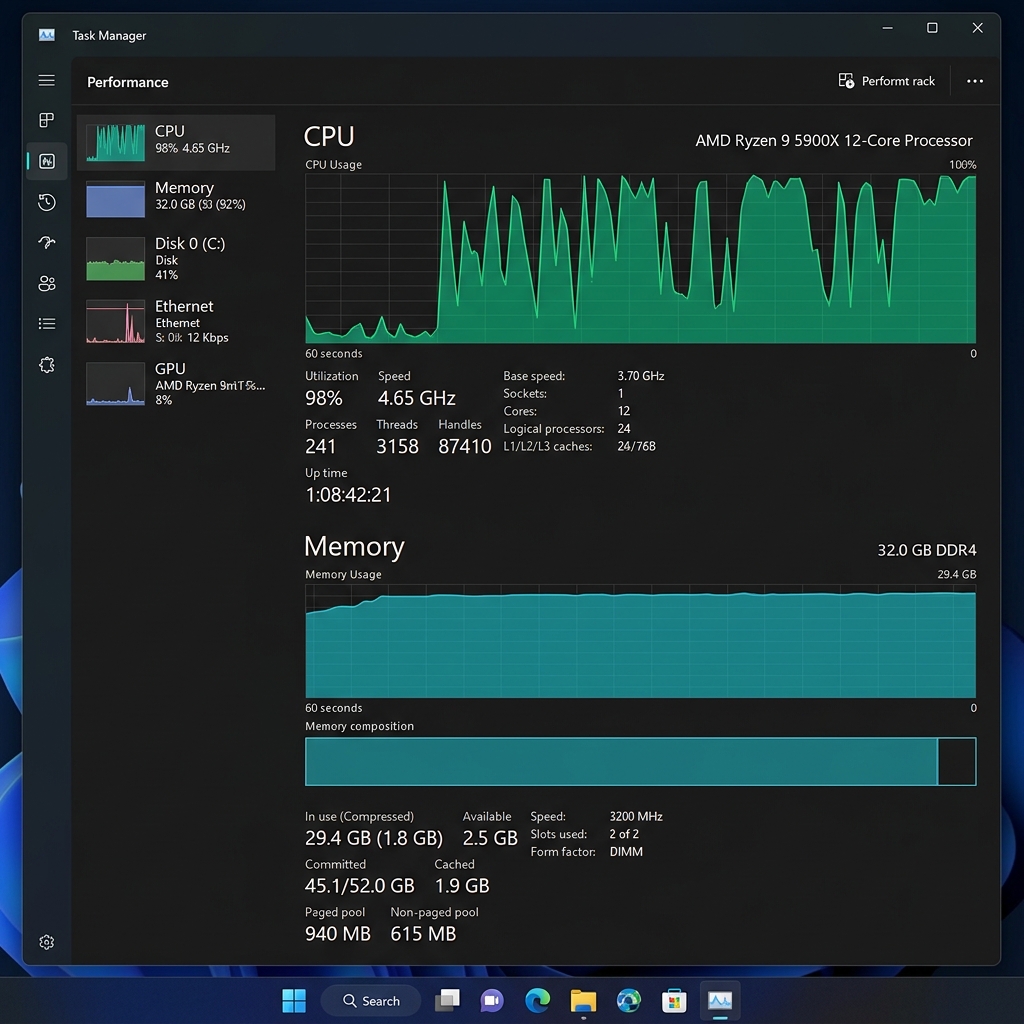
Task Manager is your best friend when diagnosing a slow PC.
Why Do Computers Slow Down Over Time?
It's not your imagination; computers genuinely do get slower as they age. This happens due to a combination of factors:
- Startup Bloat: Every program you install wants to launch in the background as soon as you turn your PC on.
- Failing Hard Drives: Traditional Hard Disk Drives (HDDs) have moving physical parts that wear out over time, increasing the time it takes to seek data.
- Thermal Throttling: Dust builds up in your laptop's fans. To prevent overheating, the processor intentionally slows itself down (throttles).
- Insufficient RAM: Modern web browsers and applications use vastly more memory today than they did five years ago.
Step-by-Step Guide to Speeding Up Your PC
Let's dive into the most effective, real-world solutions that actually yield results, starting from quick software fixes to impactful hardware upgrades.
If your computer takes a long time to boot, this is the fix. Press
Ctrl + Shift + Esc to open Task Manager. Click on the Startup apps tab. Look for apps with a "High" startup impact that you don't immediately need (like Spotify, Skype, or game launchers). Right-click them and select Disable. This stops them from slowing down your boot sequence.
In the Task Manager, look at the Processes tab. Sort by "CPU" or "Memory" to see which program is eating up your resources. If you see your antivirus running a full system scan, that's your culprit. If you see a rogue background task stuck at 100% CPU, right-click it and select "End task".
When your hard drive is 95% full, Windows struggles to find space to write temporary files, causing massive slowdowns. Go to Windows Settings > System > Storage and turn on Storage Sense to automatically delete temporary files and empty your recycle bin.
Windows has fancy animations for opening and closing windows, which looks great but taxes older graphics chips. Press the Windows key, type "Adjust the appearance and performance of Windows", and hit Enter. Select the bubble for Adjust for best performance and hit Apply. Your UI won't look as modern, but it will feel significantly snappier.
If your computer is infected with malware, spyware, or crypto-miners, it will hijack your CPU power. You don't necessarily need an expensive third-party antivirus. Open Windows Security, go to Virus & threat protection, click on "Scan options", and select Full scan. This will check every file and running process for malicious activity.
Microsoft regularly releases patches to improve system stability and fix performance bugs. Go to Settings > Windows Update and click Check for updates. Furthermore, outdated chipset or graphics drivers can cause severe system lag. Use your manufacturer's update utility (like Dell SupportAssist or Lenovo Vantage) to keep your drivers current.
By default, Windows laptops are often set to a "Balanced" or "Power Saver" plan to preserve battery life, which throttles the CPU. If your laptop is plugged into the wall and still running slow, right-click the battery icon, go to Power Options, and change your plan to High Performance.
If your computer only feels slow while browsing the web, the culprit is likely your browser. Google Chrome and Microsoft Edge allow you to install extensions. While useful, each extension acts as a mini-program running constantly in the background. Type
chrome://extensions/ in your URL bar and disable or remove any extensions you don't actively use.
The Ultimate Fix: Hardware Upgrades
If you've done all the software tweaks and your PC is still crawling, it's time to look at the hardware. You do not necessarily need a new PC.
Upgrade #1: Switch from an HDD to an SSD
If your computer is older and uses a traditional spinning hard drive (HDD), upgrading to a Solid State Drive (SSD) is the single most transformative upgrade you can perform. Because SSDs use flash memory with no moving parts, they can load Windows and applications up to 10 times faster than an HDD. An older laptop with an SSD will feel faster than a brand-new laptop with an HDD.
Upgrade #2: Add More RAM
Random Access Memory (RAM) is your computer's short-term workspace. If you like keeping 20 tabs open in Chrome while listening to music and editing a document, you are likely maxing out your RAM. If your system has 4GB or 8GB of RAM, upgrading to 16GB will drastically reduce "stuttering" when switching between heavy applications.
A Warning About "PC Speed Up" Software
Avoid downloading third-party "PC Cleaners" or "Registry Boosters" you see advertised online. Modern versions of Windows do an excellent job of managing the registry automatically. Many of these third-party tools act as malware, slowing your computer down further with pop-up ads and unwanted background tracking.
Frequently Asked Questions (FAQs)
Frequently Asked Questions About Slow Computers
Q: How much RAM do I actually need in 2026?
8GB is the absolute minimum for Windows 11 — multiple browser tabs will cause noticeable slowdowns. 16GB is the sweet spot for most users, comfortable for 20+ browser tabs, Office apps, and moderate multitasking. 32GB is needed for video editing, virtual machines, or heavy software development. If your hard drive light is constantly on, your PC is using disk as virtual RAM — a clear sign more RAM is needed.
Q: Will disabling startup programs really make my PC faster?
Yes — significantly. Open Task Manager with Ctrl+Shift+Esc and go to the Startup tab. Look at the Startup impact column and disable anything rated High that you do not need immediately on boot — Teams, Spotify, Discord, OneDrive, and manufacturer bloatware are common culprits. Each disabled high-impact item can cut 5-15 seconds off boot time and free 50-200MB of RAM instantly.
Q: Is it worth reinstalling Windows to speed up my PC?
For a PC that is 3+ years old and has never been reinstalled, yes — a clean Windows install typically restores near-new performance. Windows 11 makes this easier with Reset this PC under Settings. Before reinstalling, back up your Documents, Pictures, Downloads, and Desktop folders. The whole process takes 45-90 minutes and is often more effective than any third-party optimiser tool.
Q: Does antivirus software slow down computers?
Third-party antivirus can use 5-15% CPU during scans. Windows Defender is now comparable in detection rates and uses fewer resources than most paid alternatives. On machines with less than 8GB RAM, switching to Defender alone can noticeably improve performance. Never run two antivirus programs simultaneously — they will conflict and can slow your system to a crawl.
Q: My PC is slow only when plugged into the wall — why?
This is usually a power plan issue. When plugged in, Windows should use Balanced or High Performance mode — check via Control Panel and then Power Options. Also monitor CPU temperatures when plugged in using HWMonitor. Some laptops throttle when charging because the charger generates heat near thermal sensors. Try using the laptop on a stand with the charger on the opposite side.
🔧 When to Seek Professional Help
- CrystalDiskInfo shows SMART errors in yellow or red — back up data immediately and replace the drive
- PC is still slow after a completely clean Windows reinstall — hardware-level problem such as thermal throttling
- RAM is 16GB or more but Task Manager shows 90%+ memory usage at idle — likely a driver memory leak
- The PC is more than 7 years old — repair costs often exceed the value of purchasing a modern upgrade
Summary Checklist for Speeding Up a Slow PC
- Step 1: Upgrade from a mechanical Hard Disk Drive (HDD) to a Solid State Drive (SSD).
- Step 2: Upgrade RAM to at least 16GB for comfortable Windows 11 multitasking.
- Step 3: Disable non-essential startup apps in Task Manager (Ctrl+Shift+Esc).
- Step 4: Perform a Disk Cleanup to delete temporary files and Windows Update caches.
- Step 5: Perform a clean reinstall of Windows 11 if the OS is 3+ years old.